
DimLogic Documentation
Overview
DimLogic is short for Dimensional Logic. As a module, the functionality provided allows you, the user, to apply logic to Business Central dimensions. It operates on a deterministic, user defined rule-based system. You set a trigger value for a specific dimension, and what subsequent dimensions should be, and DimLogic applies those suggestions when it executes. This helps prevent data entry errors, and improves velocity of data entry.
DimLogic Principles
DimLogic rules have the following universal principles associated to them:
Within any scope (except “All”; see below)
- Triggers are single-dimension / single-value driven.
- No rule detail may assign to any dimension that is referred to by a rule header (including its own)
- No rule detail may set more than one dimension value to the same dimension in the same ruleset
In Scope “All” The “All Supported Areas” scope applies the rule independently within each DimLogic scope. All scoped principles above apply to “All” scoped rules, as well as:
- Any rule scope with “All Supported Areas” must not conflict with a scoped rule
These principles prevent circular references, recursive rules firing and prevent pointless multiple settings of the same dimension to different values.
Security
Once DimLogic has been installed from AppSource, user security can be applied for the module. In order to enable DimLogic’s functionality for users, ensure that DimLogic Basic Access is deployed to the users.

DimLogic - Basic Access (EVG DIMLOGIC USER)
This level of user access is the basic level required for DimLogic to function. It does not allow access to the configuration of DimLogic rules.
DimLogic - Admin Access (EVG DIMLOGIC ADMIN, EVG DIMLOGIC ALL)
This level of user access includes the basic level, and does allow access to the configuration of DimLogic rules.
Basic Navigation
The DimLogic product windows can be found by going to the “Tell Me” lookup and typing in “DimLogic”:
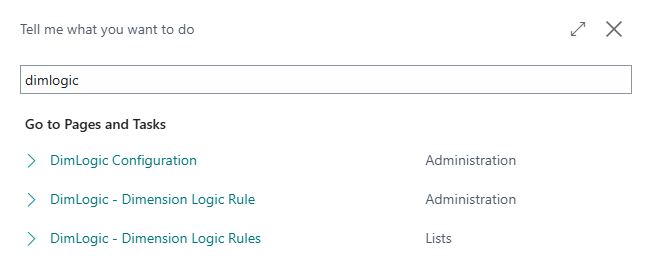
Each of these entries will be described in more detail below.
Configuration
The DimLogic module can be configured using the DimLogic Configuration window. This window is only available to administrators.
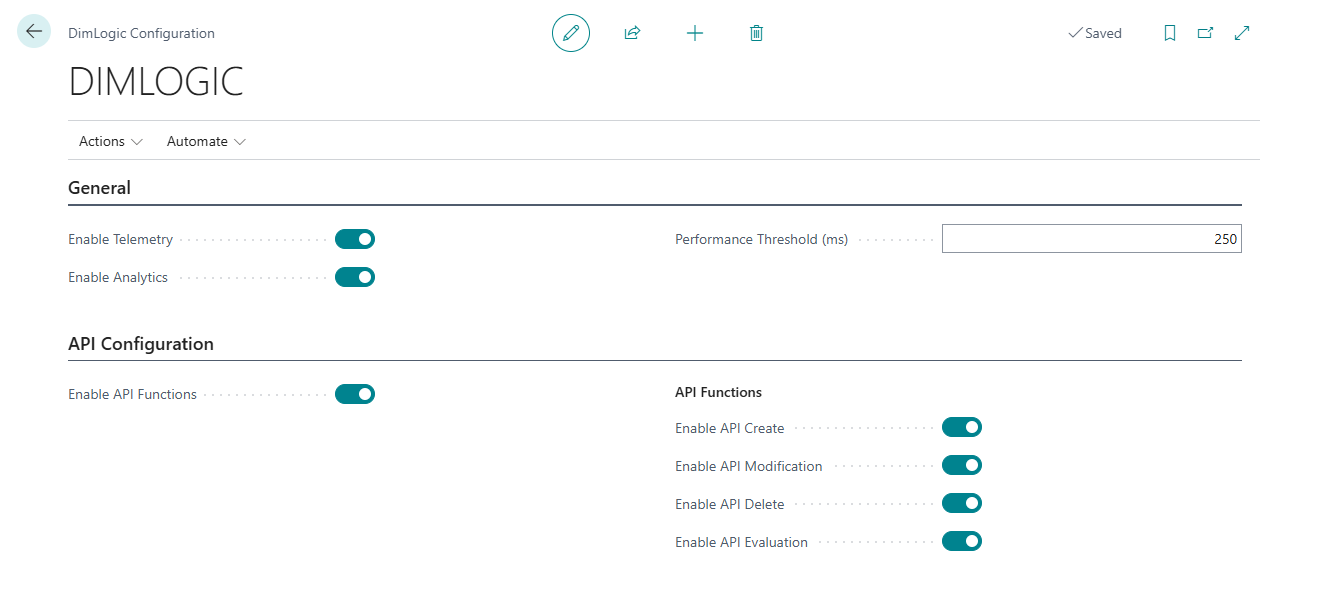
The DimLogic Configuration window controls only certain emission behavior for telemetry purposes.
Enable Telemetry: this setting controls whether telemetry is collected from the module. This is set by company, by environment. See the telemetry section for an explanation of the data being sent to the developer.
Enable Analytics: this setting controls whether extended telemetry information that helps the developer understand usage patterns is sent to the developer. See the telemetry section for an explanation of the data being sent to the developer.
Performance Threshold: this setting is used for metrics related to how fast DimLogic is operating, and is helpful to the developer to understand how much time DimLogic is taking to resolve. This setting has no impact on operation.
API Configuration Section
The API configuration section is covered by API documentation at api/.
Configuring Rules
Overview
At the core of DimLogic is the configuration of rules. A rule is defined as a list of dimensions and their associated settings to be automatically applied when a specific dimension and value combination is entered. Upon the trigger being activated (the selection made in the dimension) the ruleset is evaluated and applied against the dimensions and values listed in the rule.
Example:
In the sample data for Business Central (Cronus) you have a business rule that states that when “Area” is set to 70, “Business Group” should be INDUSTRIAL, and “Customer Group” should be MEDIUM. DimLogic can be configured to accomplish this task.
Rules List [DimLogic - Dimension Logic Rules]
To get to the list of rules, go to “Tell Me” and search for “DimLogic”. Select DimLogic - Dimension Logic Rules. This window operates in the same manner as all list windows in Business Central; you can make a new rule, modify existing rules and delete rules from this screen. This screen also contains information about the rule such as the number of times it has been used. (This can be useful to find “dead” rules.)
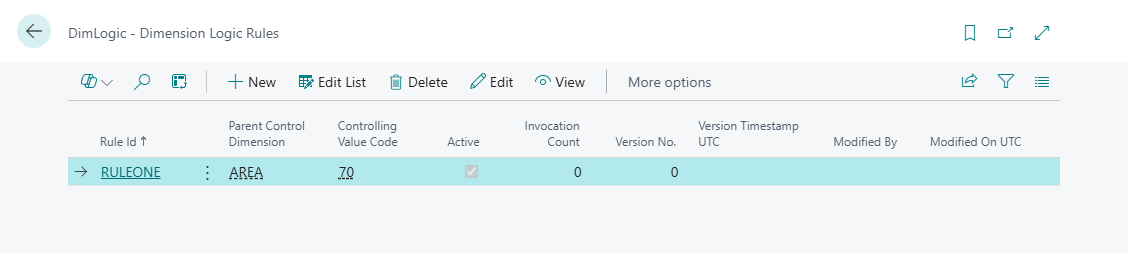
To select an existing rule, you can click through on the rule name, or select the line and press “View”.
Rule Card [DimLogic - Dimension Logic Rule]
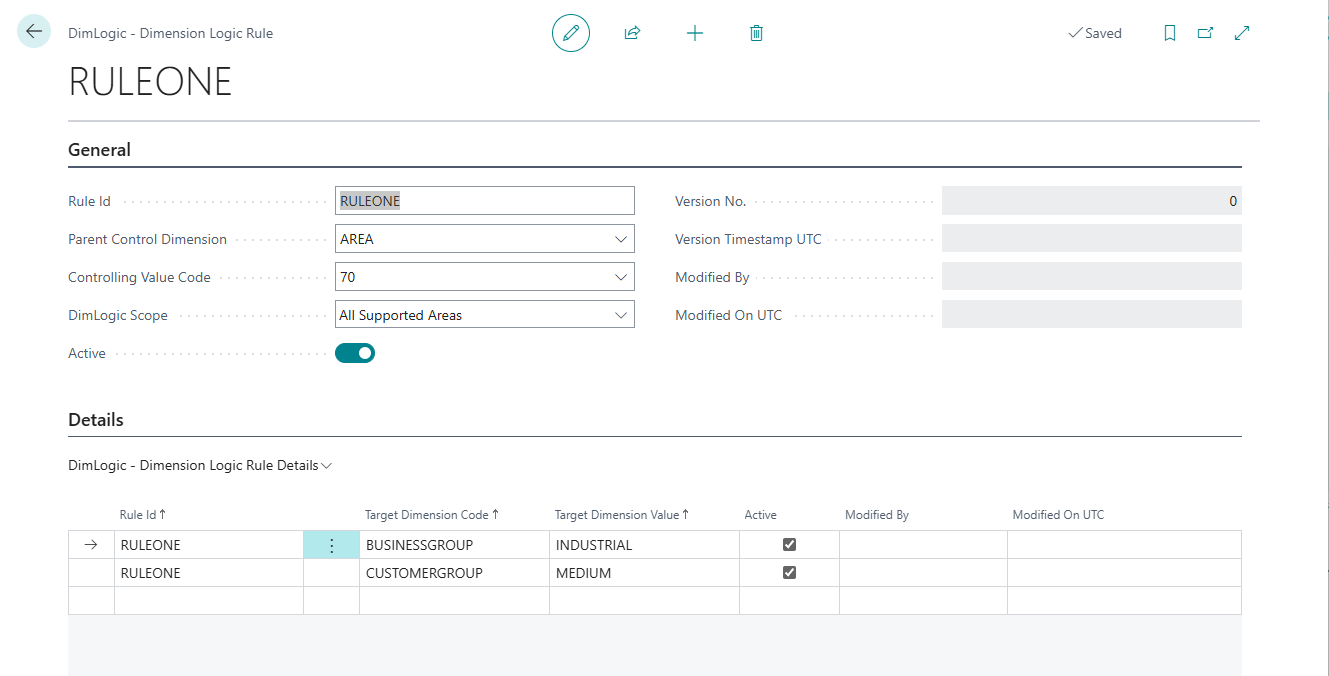
The rule card is broken into two parts: “General” is the rule header, which specifies the control dimension and value of the rule, and “Details” which contains the ruleset to be executed when the parent control dimension is set to the value specified. Rules can be inactivated from this window as well.
All rules must have a name.
DimLogic Scope
DimLogic also contains functionality to apply the DimLogic rules to specific areas of the system only. Be advised that this is a single-selection drop down box at this time, meaning you cannot set up a rule to apply to purchasing and sales without general ledger.
As of release 1.0.3.xxxx functionality can be restricted to the following specific modules:
- General ledger
- Sales
- Purchasing
- Inventory
- Fixed assets
- Project accounting
- Resource accounting
- Bank entries
If you find that you require DimLogic to access a specific module, please visit https://evergrowth.ca/support and submit a request via our website. If you can, please include the information from the extension management window for the specific module.
Operation
Operation of DimLogic, once the rules have been set, is largely automatic, and requires no user intervention.
Release Notes
1.0.0.9504 - 2026-01-07
- Initial release
1.0.1.9535 - 2026-02-08
- #237 - Create an API layer
- #290 - Fix entitlement layering
- General improvements to code consistency and naming
1.0.2.9553 - 2026-02-26
- #302 / #303 / #304 - Address user-reported issue of DimLogic not working on recurring entry screens
1.0.3.9592 - 2026-04-06
- #305 - Add fixed assets functionality
- #316 - Add inventory functionality
- #318 - Add project accounting functionality
- #319 - Add bank functionality
- #322 - Add resource accounting functionality
- #313 / #314 / #315 / #346 - bug fixes and code optimizations